
Quick question: Can you name everyone who knows the password to your HR email account? Or your accounting email?
If you had to think about it for more than a second, that’s the problem right there.
Here’s what I see regularly at businesses in the 15-40 employee range. Multiple people need access to the HR or accounting email, so someone sets up a shared password. That password gets passed around via text message or sticky note. It works fine until someone leaves the company, and now you have to change the password and redistribute it to everyone who still needs access. Except you’re not completely sure who all has it, or whether the person who left still has it saved somewhere.
Worse, when something happens in that account – a vendor payment gets authorized, an employee file gets updated, a benefits enrollment gets changed – you have no way to know which person actually did it. Everyone logged in with the same credentials, so there’s no audit trail tied to individual users.
Shared passwords for critical accounts create three connected issues that get worse over time.
First, you can’t track who did what. When multiple people share one login, every action in that account is attributed to the shared account name, not to the individual person who took the action. That makes it impossible to answer basic accountability questions or trace back who made a decision.
Second, former employees may still have access without you realizing it. When someone leaves and you disable their individual email account, you’ve handled that person’s direct access. But if they still have the shared password to the HR or accounting account saved somewhere, that access is still active until you change the password and redistribute it to everyone else.
Third, this shows up as a compliance gap if you ever get audited. Whether it’s cyber insurance, financial compliance, or customer security questionnaires, shared credentials for sensitive accounts get flagged as a control weakness. Auditors want to see individual accountability and proper access management, especially for accounts that handle payroll, benefits, financial data, or employee records.
You don’t need to eliminate the HR or accounting email accounts. You don’t need expensive new software. You just need to let people access those accounts through their own individual logins instead of sharing a password.
Both Microsoft 365 and Google Workspace have this capability built in at no additional cost. You’re already paying for it – you just need to configure it.
The technical setup is straightforward once you know where to look. The approach is slightly different depending on which email system you use.
Microsoft calls this feature “shared mailbox delegation.” You keep the role-based email address like hr@company.com or accounting@company.com, but you grant access to individual user accounts without sharing the password.
Here’s the process:
Go to Exchange Admin Center, then Recipients, then Shared Mailboxes. Select the mailbox you want to configure (or create a new shared mailbox if needed). Click Edit, then go to the Delegation section. Add the individual user accounts that need access to this mailbox.
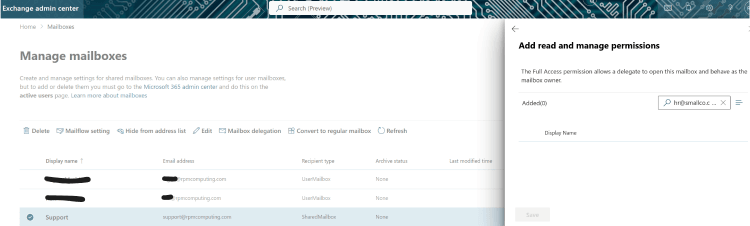
[Go to Exchange Admin Center > Recipients > Shared Mailboxes > Select mailbox > Edit > Delegation. Add individual users.]
[Graphic shows this step-by-step process in the Exchange Admin interface]
Once that’s configured, those users can access the shared mailbox directly from their own Outlook without needing to know a separate password. Every action they take logs to their individual account, not to the shared mailbox.
Google’s approach works differently and requires a couple of steps if maintaining the same email address matters to you. The basic concept is using Google Groups with the Collaborative Inbox feature enabled.
Create a Google Group with the email address you want to use – hr@company.com or accounting@company.com. Add the team members who need access to this group. Then enable the Collaborative Inbox feature for that group. Each person accesses the inbox with their own individual login credentials.
Goto: Google Groups > Create group > Scroll to ‘Enable additional Google Groups features’ > Select ‘Collaborative Inbox’ > Add team members
This gives you a shared email address that multiple people can access, but every message is handled through individual accounts with proper logging.
Once you set this up properly, you get three things that matter for operations and security.
First, you know who accessed what and when. Every action in the shared mailbox logs to the individual account that performed it. If someone processes a vendor payment or updates an employee record, you can trace exactly who did it and when.
Second, onboarding and offboarding get simpler and more reliable. When someone new joins who needs access, you just add their individual account to the delegation or group. When someone leaves, you remove their access. No password to pass around, no uncertainty about whether old access is still active somewhere.
Third, there’s no additional cost. This functionality is already included in Microsoft 365 and Google Workspace at the subscription levels most small businesses use. You’re not adding licenses or buying new software – you’re just configuring what you already have.
If you have shared passwords for critical email accounts, you probably have them in other places too. While you’re addressing this, it’s worth checking for a few related issues.
Look for shared drives or folders that people access with a shared password instead of individual credentials. Check for generic login accounts – things like admin, owner, boss, or office – that multiple people use. Review whether you have accounts tied to former employees that nobody’s touched in months or years. Verify that contractor or vendor access you granted temporarily was actually revoked when the project finished.
These are the same type of access control gaps, just in different systems. They accumulate over time as businesses grow and add people without having formal processes for managing access.
If you recognized your business in this description, you’re not alone. This is extremely common at the stage where you’ve grown past informal IT but haven’t yet formalized access management practices.
The gaps I’ve described here are fixable, and they’re much easier to fix before something forces the issue – an audit, a security incident, or a key employee departure that exposes how much access was never properly documented or controlled.
If you want help walking through the setup or doing a quick audit of your other shared accounts to see where the biggest risks are, that’s a conversation worth having. I can show you what to look for and help you prioritize what needs to change first.